// case study - delivery super-app - mobile
Butler Feature - for Toters
Send anything, as easily as booking a taxi.
Butler delivers anything that fits on a motorbike. I borrowed the pickup and drop-off pattern people know from taxi apps, and reordered checkout: what you’re sending first, then where, then when.
August 2025 - design challenge for Toters - solo - audit, flows, UI, prototype
01 - Problem and process
Placing a Butler order took too long, and details came in unclear.
The brief from Toters: make Butler easier, whether you send something from A to B or buy and deliver specific items.
I focused on Send something: one errand, done well, from picking two places to tracking it live.
The OKRs Toters gave me, and my answer to each.
MY ANSWERAsk for the order first, and set the address early.
MY ANSWERThe address sits right under the order, so no trips back.
MY ANSWERPins on a map and clear fields make it hard to send an order with gaps.
MY ANSWERExact pins cut the calls riders and ops make to find people.
How I got there: borrow a pattern, then reorder checkout.
Ordering took too long and came in unclear. Four OKRs to aim at.
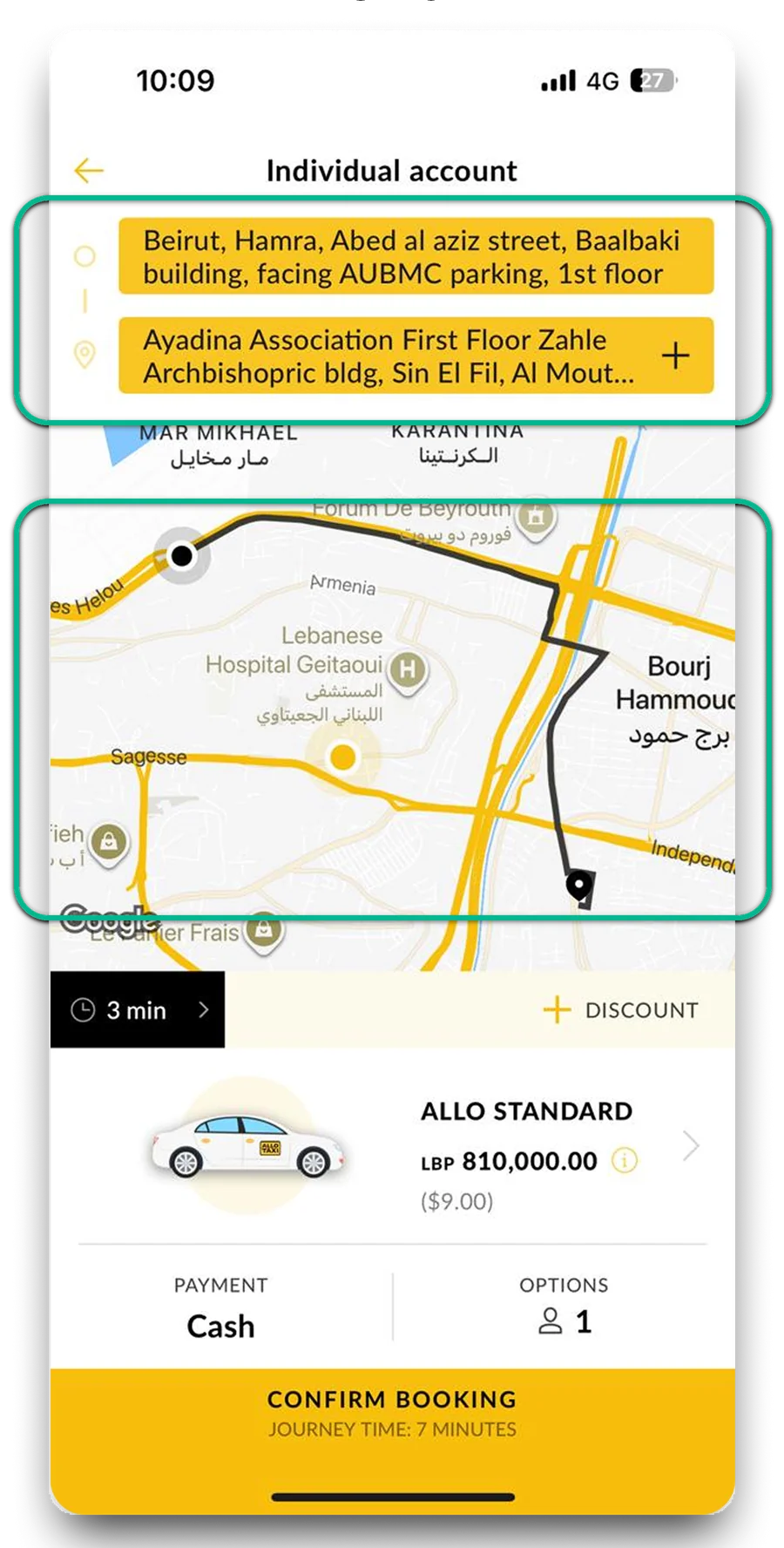
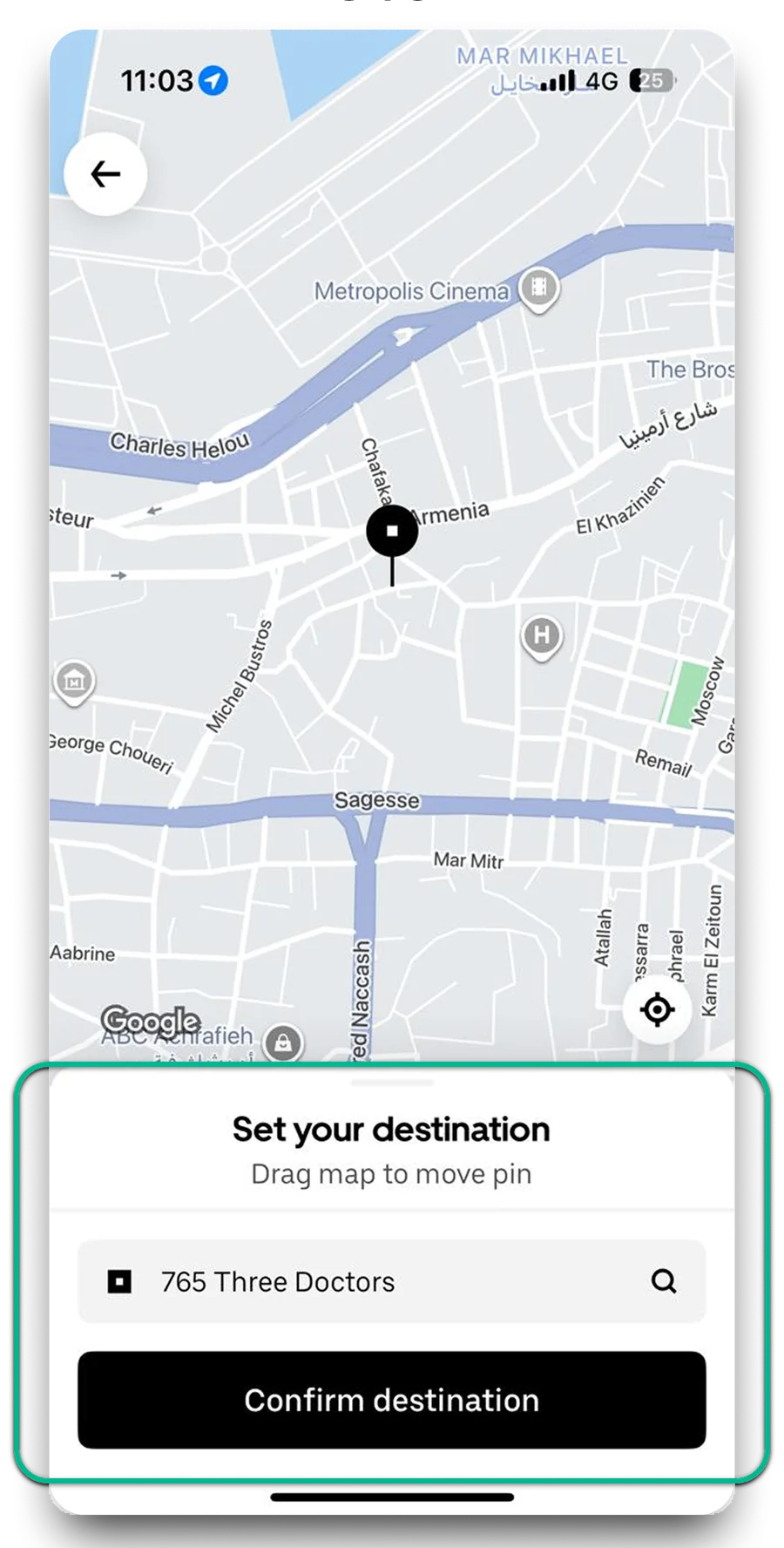
4 OKRSHow taxi apps let people pick two places: Alo Taxi, Uber, Bolt.
3 APPSThe current Butler, screen by screen, and two checkout explorations.
2 EXPLORATIONSYour order first, then the address, then the time.
NEW ORDERSend something, final UI and a clickable prototype.
1 FLOWResearch: people already know how to pick two places.
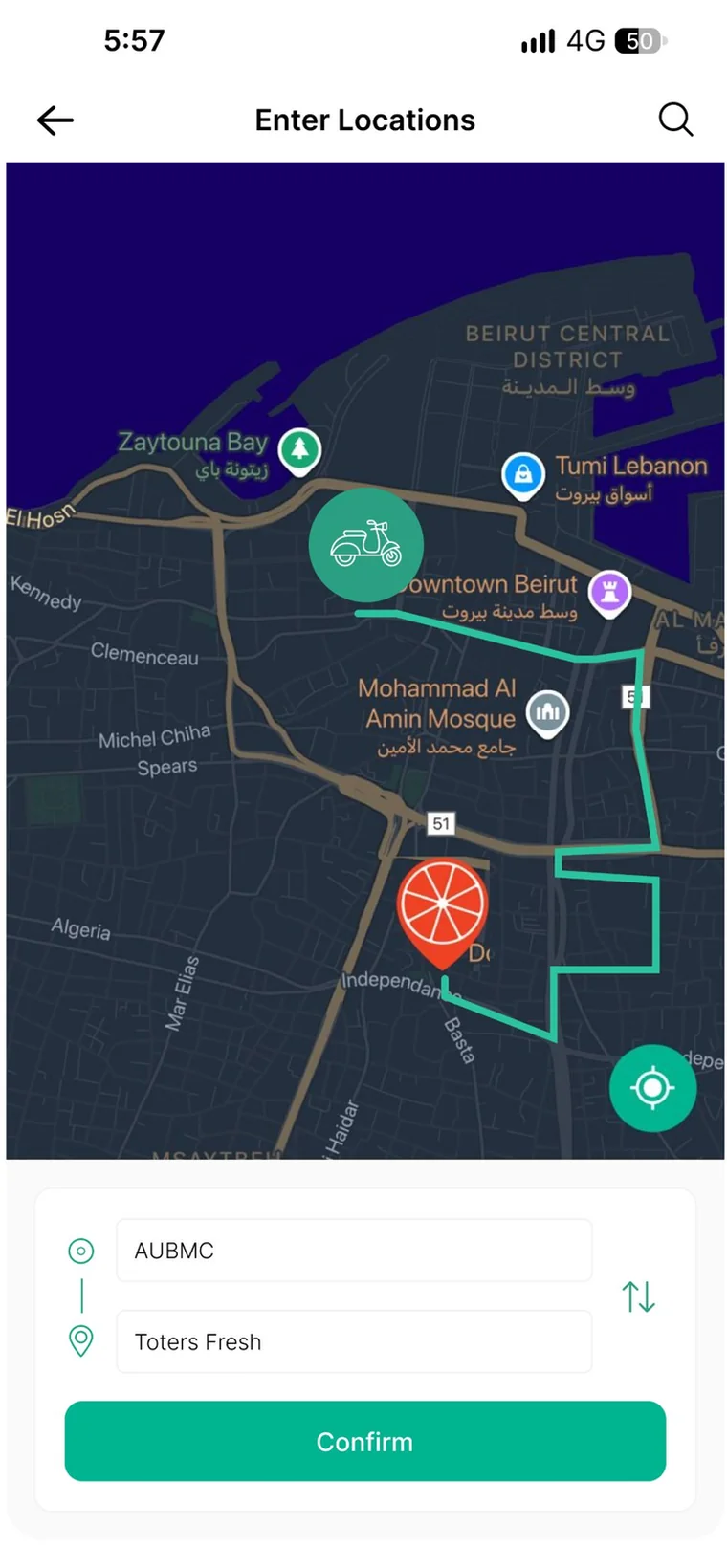
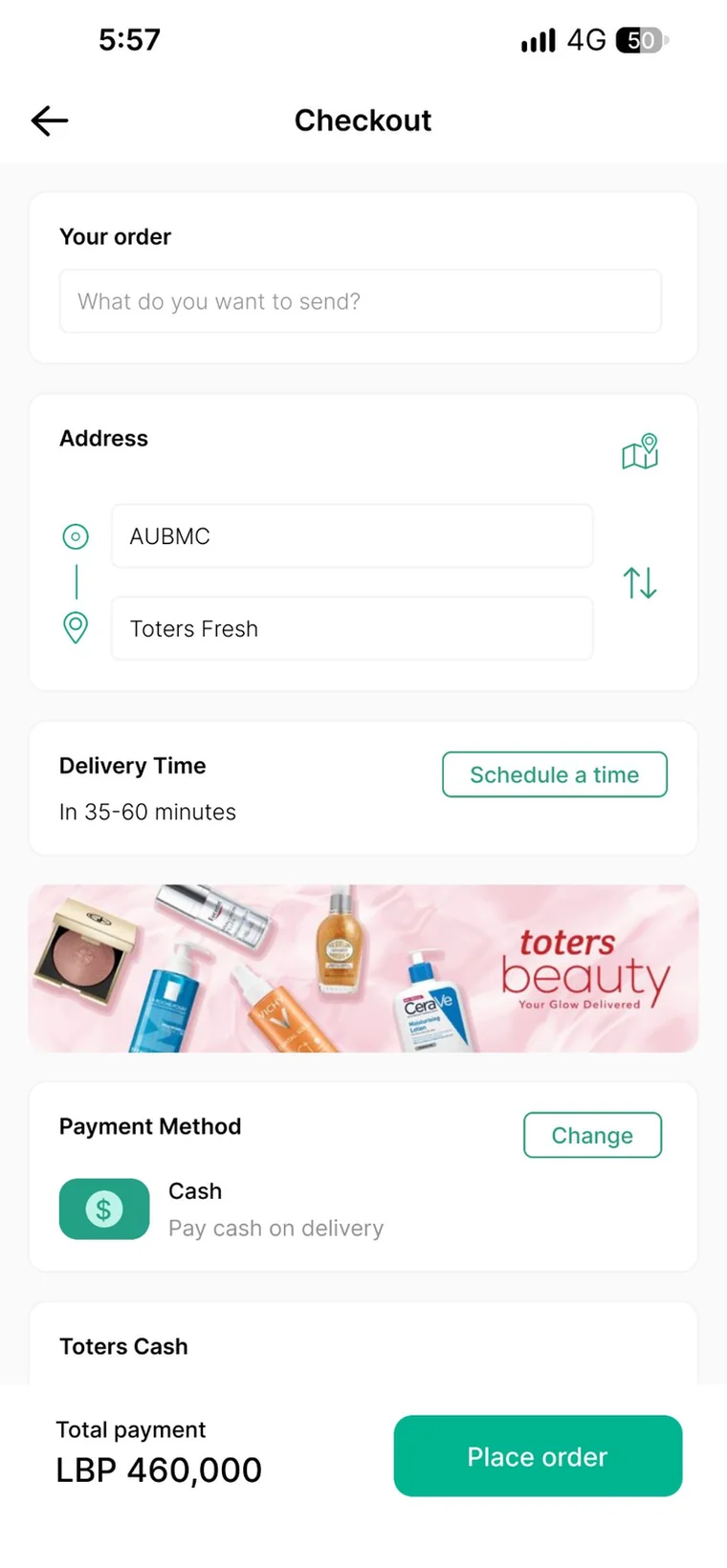
In every taxi app, you pick two places with a map in front of you. Butler asked for the same two places, without the map.
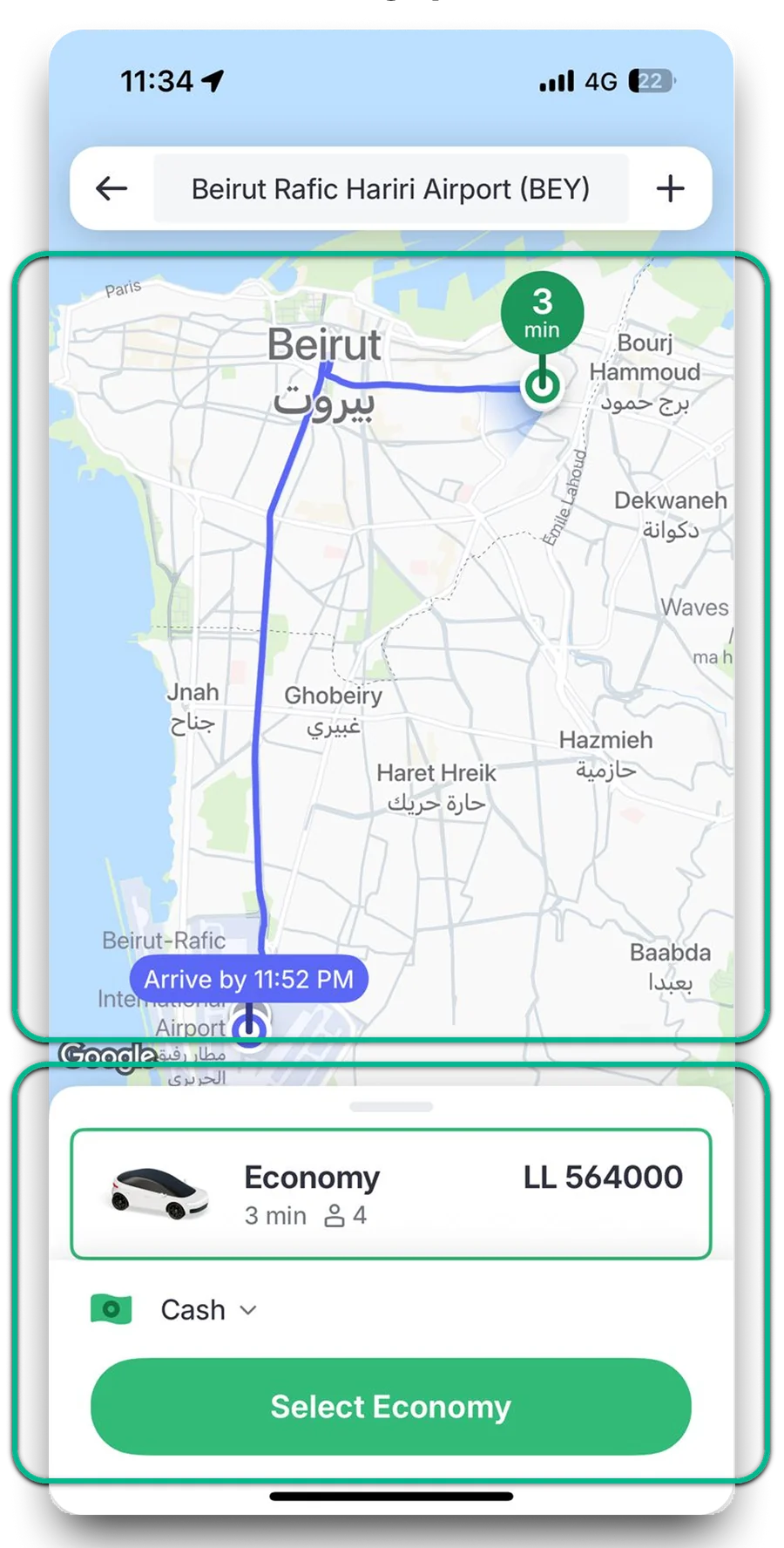
Audit: from asking for everything to asking in order.
The current Butler asked for the time and two addresses before what you’re sending. Two explorations later, the order flips: what it is, where it goes, then when.
Key decisions, and how I’d check them.
Each one removes a reason to leave checkout or call support. A design challenge, so nothing was tested with users. These checks track the OKRs above.
What comes first in checkout?
Your order, then the address, then the time.
The address is no longer first, so it sits right under the order, on the same screen.
HOW I’D CHECK ITTime from opening Butler to Place order, against the current app.
Where do addresses come from?
One field: saved places, search, or Set location on Maps.
One field does three jobs, so the list stays short: Set location on Maps, then your saved places.
HOW I’D CHECK ITAddress changes and support calls per order, after checkout.
How do you swap pickup and drop off?
The swap icon next to the fields, with a one-line hint: “Switch addresses if they’re the wrong way round”.
One more line of text on the screen, but no new button to learn.
HOW I’D CHECK ITHow often Switch addresses is used, and if people find it.
02 - The product
Every screen, step by step.
Checkout keeps your order on top, then From and To, then the time. The map is one tap away for either address.
03 - User flows
From two places to a live map.
Send something starts with what you’re sending, takes two places from saved places, search or the map, and hands over to live tracking.
04 - Prototype
Tap through it, from empty to on its way.
A clickable Send something, in the new order: what you’re sending, both places on the map, then place it and follow it live.
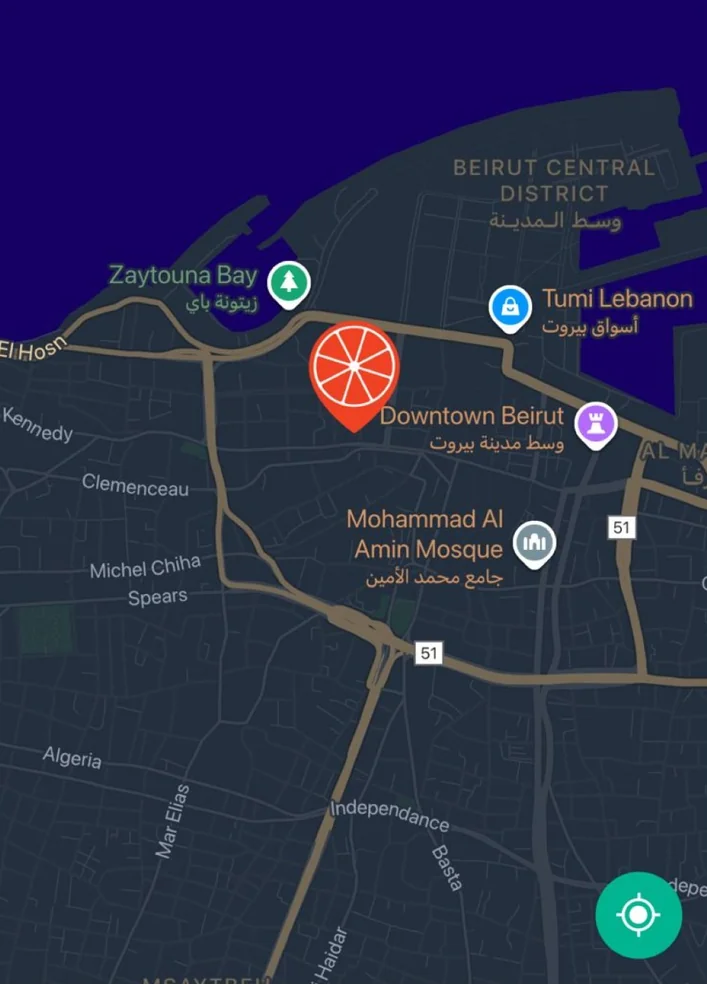
Your Butler is on the way
Tap a field for saved places, like in the real checkout. The swap icon switches the pins, and the route stays.